Welcome STARK TOUCH DEVICE!


Blog
Maintenance and handling of memory compatibility faults in industrial control computers
Maintenance and Troubleshooting of Memory Compatibility Issues in Industrial Control Computers
Industrial control computers (ICCs) rely on stable memory performance to handle real-time data processing, automation tasks, and system monitoring. However, memory compatibility issues can disrupt operations, leading to crashes, data corruption, or system instability. This guide explores common causes of memory-related failures in ICCs and provides actionable steps for diagnosis and resolution.
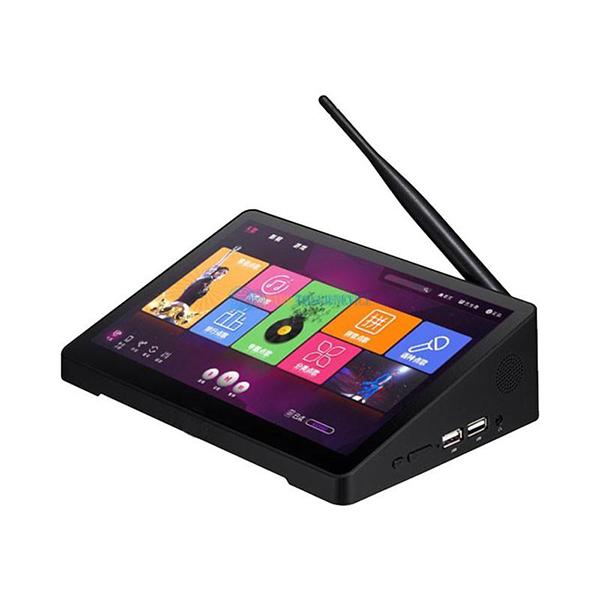
Identifying Symptoms of Memory Compatibility Problems
Recognizing early signs of memory incompatibility helps prevent prolonged downtime.
System Boot Failures and Error Codes
Memory issues often manifest during startup, presenting distinct error patterns:
Repeated Beep Codes or POST Failures
The system may emit continuous beeps or fail to complete the Power-On Self-Test (POST).
Error messages like "Memory Error" or "CMOS Checksum Error" may appear on the screen.
These indicators suggest the ICC cannot recognize or properly initialize installed memory modules.
Intermittent Booting or Random Shutdowns
The system may boot successfully on some attempts but fail on others.
Sudden shutdowns or reboots without warning could point to unstable memory configurations.
Such behavior often correlates with loose connections or incompatible memory timings.
Runtime Performance Issues
Memory compatibility problems can degrade system performance during operation:
Frequent Application Crashes or Freezes
Software running on the ICC may crash unexpectedly or hang during execution.
Tasks involving large data transfers or multitasking could trigger these failures.
The issue may worsen under heavy load, indicating insufficient or mismatched memory.
Data Corruption or I/O Errors
Files saved to memory-mapped storage may become corrupted or inaccessible.
Input/output operations to connected devices (e.g., sensors, actuators) might fail intermittently.
These symptoms suggest memory errors are affecting data integrity.
Diagnosing Memory Compatibility Issues
Accurate diagnosis requires systematic testing and verification.
Verifying Physical Installation
Improper memory seating is a common cause of compatibility problems:
Checking Module Alignment and Latches
Power down the ICC and disconnect it from all power sources.
Open the chassis and inspect memory modules for proper alignment in their slots.
Ensure latches or clips on both ends of the slot are fully engaged.
Testing Individual Slots and Modules
Remove all memory modules and reinstall them one at a time.
Boot the system after each installation to identify faulty slots or modules.
If the ICC boots with a single module, test it in different slots to isolate the issue.
Testing Memory with Diagnostic Tools
Software utilities can help identify hidden memory errors:
Using Built-In BIOS/UEFI Memory Tests
Access the ICC’s BIOS or UEFI settings during startup.
Locate the memory testing option (often labeled "Memory Test" or "Diagnostics").
Run a comprehensive test to check for bit errors or addressing issues.
Employing Third-Party Memory Testers
Download and run tools like MemTest86 or similar utilities from a bootable USB drive.
These tools perform extensive write-read cycles to detect faulty sectors or timing conflicts.
Allow the test to complete multiple passes for reliable results.
Cross-Referencing Memory Specifications
Ensuring compatibility between memory modules and the ICC’s motherboard is critical:
Matching Memory Type and Speed
Consult the ICC’s documentation for supported memory types (e.g., DDR3, DDR4).
Verify the clock speed (e.g., 1600 MHz, 2400 MHz) matches the motherboard’s capabilities.
Avoid mixing modules with different speeds, as this can cause instability.
Checking Voltage and Timing Requirements
Confirm the memory modules operate at the correct voltage (e.g., 1.5V, 1.35V).
Review the motherboard’s supported timings (e.g., CAS latency, tRAS) and adjust if necessary.
Mismatched voltage or timing settings can lead to errors or hardware damage.
Resolving Memory Compatibility Problems
Once diagnosed, take targeted steps to restore stable operation.
Updating BIOS/UEFI Firmware
Outdated firmware may lack support for newer memory technologies:
Checking for Firmware Updates
Visit the ICC manufacturer’s website to download the latest BIOS/UEFI version.
Review the update notes for mentions of memory compatibility improvements.
Backup existing firmware settings before proceeding.
Performing the Firmware Upgrade
Follow the manufacturer’s instructions for updating the BIOS/UEFI.
Use a reliable power source and avoid interruptions during the process.
After updating, reconfigure any custom settings and verify memory recognition.
Adjusting Memory Settings in BIOS/UEFI
Fine-tuning memory parameters can resolve compatibility conflicts:
Modifying Memory Timings and Voltages
Access the BIOS/UEFI advanced settings menu.
Locate options for memory timings (e.g., CAS latency, tRCD) and voltages.
Adjust these values to match the specifications of the installed modules.
Save changes and reboot to test stability.
Disabling Memory Remapping Features
Some motherboards offer features like "Memory Remap" or "XMP Profiles."
Temporarily disable these options to see if they resolve compatibility issues.
Re-enable them one at a time to identify problematic settings.
Replacing Incompatible Memory Modules
If diagnostics confirm hardware incompatibility, replace the memory:
Selecting Compatible Replacements
Choose modules that match the ICC’s supported type, speed, and voltage.
Prioritize modules from reputable suppliers known for industrial-grade components.
Avoid mixing modules from different manufacturers or generations.
Installing and Testing New Memory
Power down the ICC and remove all existing modules.
Install the new modules one at a time, ensuring proper seating.
Boot the system and run diagnostic tests to confirm stability.
Gradually add additional modules to verify multi-channel compatibility.
Preventing Future Memory Compatibility Issues
Proactive measures reduce the likelihood of recurring problems.
Maintaining Accurate Documentation
Keeping detailed records of memory configurations aids troubleshooting:
Recording Memory Specifications
Document the type, speed, voltage, and capacity of all installed modules.
Include the motherboard model and BIOS/UEFI version for reference.
Store this information in a centralized location accessible to maintenance teams.
Tracking Firmware and Driver Updates
Note the dates and versions of BIOS/UEFI updates applied to the ICC.
Record any changes made to memory settings during troubleshooting.
Use this log to identify patterns or recurring issues.
Implementing Regular Hardware Inspections
Periodic checks help detect potential problems early:
Scheduled Memory Module Inspections
Include memory module checks in routine preventive maintenance schedules.
Look for signs of physical damage, such as bent pins or cracked PCBs.
Clean contacts with isopropyl alcohol and a lint-free cloth if needed.
Environmental Monitoring
Ensure the ICC operates within specified temperature and humidity ranges.
Excessive heat or moisture can degrade memory performance over time.
Use environmental sensors to track conditions and adjust as necessary.
Training Personnel on Memory Best Practices
Educating staff reduces the risk of human error during maintenance:
Developing Standardized Procedures
Create step-by-step guides for memory installation, testing, and replacement.
Include visual aids (e.g., diagrams of slot locations) for clarity.
Review these procedures regularly to incorporate new insights or technologies.
Conducting Hands-On Workshops
Train technicians on using diagnostic tools and interpreting error codes.
Simulate common memory failure scenarios to practice troubleshooting.
Encourage a culture of caution when handling sensitive components.
By following these steps, industrial control computer operators can effectively diagnose, resolve, and prevent memory compatibility issues, ensuring reliable performance in critical applications.